COLDCARD + Sparrow: Air-Gapped from First Address to First Signature
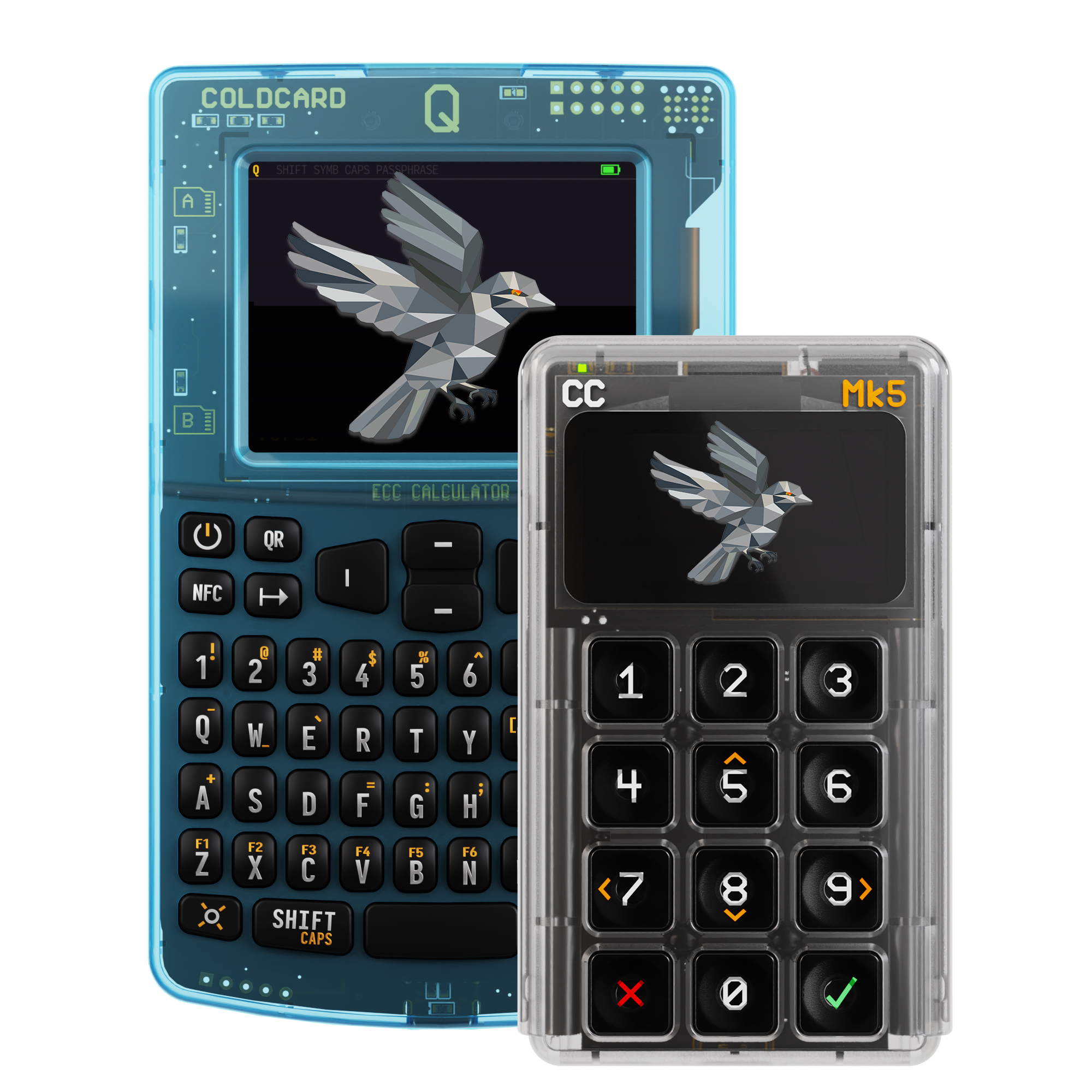
Sparrow and COLDCARD should have different jobs.
Sparrow runs on the computer, watches the blockchain, tracks wallet history, chooses coins, creates transactions, and broadcasts. In this workflow, COLDCARD holds the signing key, interprets the proposed transaction on its own screen, and signs after physical approval.
The air-gapped workflow connects those jobs without a live data cable:
- export public wallet data from COLDCARD;
- import it into Sparrow as watch-only;
- verify a receive address on both devices;
- let Sparrow build a PSBT;
- move it to COLDCARD by Q QR or Mk5 MicroSD;
- return the signature to Sparrow and broadcast.
With official COLDCARD firmware, the standard wallet export contains public wallet data and does not include the seed or private keys. This limits the computer’s role, but it does not make the computer, transfer medium, or signing device risk-free.
Versions current at publication
Menus and buttons change. At publication, the current releases were:
- COLDCARD Q standard firmware
1.5.1Q; - COLDCARD Mk5 standard firmware
5.6.1; - Sparrow Wallet
2.5.3.
Check the COLDCARD Security Status page, install and verify the current signed COLDCARD firmware, and check Sparrow releases before starting. Download Sparrow only from sparrowwallet.com or its linked official repository, and verify the download according to Sparrow’s instructions.
This article covers a standard single-signature wallet. Multisig uses the same PSBT concept but requires the complete policy and enough cosigners to meet the threshold.
What this workflow changes—and what it does not
QR and MicroSD signing avoid a live data connection between COLDCARD and the computer. They do not make either device trusted, verify firmware for you, protect an exposed backup, or prevent every attack. This article describes the intended workflow, not a guarantee against every software, firmware, supply-chain, backup, or operator failure. Install only signed firmware from the official download page, keep the device under your control, and approve a transaction only after its recipient, amount, fee, change, and warnings match your intent on the COLDCARD screen.
If the wallet seed was created on firmware covered by the July 2026 advisory, updating the device alone does not repair it. Follow the affected-seed migration guide before relying on this setup for that wallet.
Prepare COLDCARD first
Complete the current Q or Mk5 setup:
- inspect the tamper-evident bag;
- set the PIN and learn the anti-phishing-word check;
- install and verify current signed firmware before creating a seed;
- generate or import the intended seed;
- make and test the required backups;
- record the expected extended fingerprint.
Current standard firmware combines fresh device entropy with one required user method for every new seed: at least 65 key presses with unpredictable timing, 50 private rolls of a fair physical six-sided die, or 128 private physical coin flips. Dice Rolls Only remains a separate advanced workflow.
Before funding a wallet with an amount whose loss would be materially harmful to you, apply a strong, unique BIP-39 passphrase after verifying the base-seed backup. Back up the passphrase exactly and separately, record the passphrase wallet’s fingerprint, and test the complete recovery path before depositing funds. Additional complexity can create recovery risk; use multisig only with a documented and tested policy.
Never type the seed words or BIP-39 passphrase into Sparrow for this watch-only workflow. Do not provide Coinkite support with them, your PIN, backup password, private keys, or dice-roll sequence.
If the wallet uses a BIP-39 passphrase, apply it on COLDCARD before exporting to Sparrow.
Under official firmware, the export describes the wallet that is active at that moment. The base seed and each passphrase have different keys, fingerprints, addresses, and balances. Sparrow needs a separate watch-only wallet for each.
Confirm the active fingerprint at:
Advanced/Tools > View Identity
Do not proceed if it is not the one recorded for this wallet.
Export the Sparrow wallet from COLDCARD
On Q or Mk5 open:
Advanced/Tools > Export Wallet > Sparrow
Read the export notice and use account 0 for a standard first wallet. Use another account only if your wallet plan already specifies it.
MicroSD export
- Insert a FAT-formatted MicroSD card.
- Choose MicroSD as the export method.
- COLDCARD writes a
coldcard-….jsonfile to the card’s root. - Eject the card and insert it into the computer.
Q QR export
- Choose
Show QR. - Q displays the export as animated BBQr when needed.
- Keep the code ready for Sparrow’s Scan option.
With official firmware, the Sparrow export contains the extended public key, derivation path, address type, and related public wallet data. It does not include the seed or private keys.
“Public key” does not mean “publish it.” An extended public key or descriptor can reveal present and future wallet addresses, balances, and transaction relationships. Handle the export as private financial metadata.
Import as an air-gapped hardware wallet
In Sparrow:
- choose
File > New Wallet; - give the wallet a recognizable name;
- select
Airgapped Hardware Wallet; - find COLDCARD in the hardware-wallet list;
- choose
Import Filefor MicroSD orScanfor Q QR; - load the JSON file or scan the complete BBQr sequence;
- inspect the populated keystore and wallet settings;
- click
Apply.
Sparrow saves a watch-only wallet and begins synchronizing its addresses.
The computer can now generate receive addresses and build spends. A correctly created watch-only wallet cannot produce the COLDCARD signature. If Sparrow can spend without the device in this arrangement, stop and determine what private material was imported.
Verify the first receive address
This is the setup step that turns “the import seemed to work” into a concrete check.
In Sparrow:
- open
Receive; - select the first receive address at index
0; - keep the complete address visible.
On COLDCARD:
- open
Address Explorerfrom the main wallet menu; - choose the matching address type;
- select receive index
0; - compare every character with Sparrow.
If they differ, do not receive bitcoin. Common causes are the wrong passphrase state, address type, account number, derivation, or export file. Correct the cause and re-export rather than trying to make one screen resemble the other.
After a match, receive a small practice amount. Label it in Sparrow and wait until it is available to spend.
Q path: sign the first PSBT over QR
Q performs the entire round trip through the two screens.
Build in Sparrow
- Open
Send. - Enter the destination, amount, and fee rate.
- Click
Create Transaction. - Review the proposed inputs, outputs, and fee.
- Click
Finalize Transaction for Signing. - Click
Show QR.
Sparrow displays a single QR for a small PSBT or animated BBQr for a larger one.
Review and sign on Q
- Press Q’s
QRkey to start the camera. - Hold Q in front of Sparrow’s code until every frame is captured.
- Read the transaction on Q.
- Compare the complete recipient address, amount, network fee, and change with your intended payment.
- Stop on any unexpected warning.
- Press
ENTERonly when the on-device transaction is correct.
Q signs and displays the result as QR or BBQr.
Return to Sparrow
- Click
Scan QRin Sparrow. - Present Q’s screen to the computer’s webcam until the signed result loads.
- Review the complete transaction again.
- Click
Broadcast Transaction.
If scanning fails, do not take a photograph and send it through a random service. Improve the light, steady the devices, retry the BBQr sequence, or use MicroSD as the fallback.
Mk5 path: sign the first PSBT with MicroSD
Mk5 has no camera for inbound QR, so MicroSD is the standard round trip.
Build and save in Sparrow
- Open
Send. - Enter the destination, amount, and fee rate.
- Click
Create Transaction. - Review and click
Finalize Transaction for Signing. - Click
Save PSBT. - Save the
.psbtfile in the root of the MicroSD card. - Eject the card cleanly.
Review and sign on Mk5
- Insert the card into Mk5.
- Select
Ready To Sign. - Choose the intended PSBT if more than one is listed.
- Compare the recipient, amount, fee, and change on the Mk5 screen.
- Stop on an unfamiliar warning or wrong-wallet fingerprint.
- Press
✔only after the details match your intent.
Mk5 writes [original]-signed.psbt and, for supported complete transactions, a ready-to-broadcast .txn file to the card.
Return to Sparrow
- Move the MicroSD card back to the computer.
- In Sparrow select
Load PSBT. - Open the signed PSBT or
.txn. - Review the result.
- Click
Broadcast Transaction.
The card is a transport medium, not a trusted display. Malware may alter files on it. Base approval on what Mk5 parsed and showed, not on the file name or the computer screen.
What Sparrow learns
This workflow removes the live data connection between COLDCARD and the computer. It does not make the watch-only wallet anonymous or make the coordinator, transfer medium, or signer automatically trustworthy.
Sparrow knows the wallet descriptor and can derive its addresses. It sees the transactions it discovers and the labels you add. If it connects to a public Electrum server, that server may observe the addresses and transactions being queried together.
For better privacy, connect Sparrow to your own Bitcoin node, ideally over Tor. That changes who receives the wallet queries. It does not erase information already disclosed to a public server, exchange, block explorer, or reused address.
Keep Sparrow’s wallet file, COLDCARD export, and labels out of general cloud storage unless that disclosure is intentional.
Troubleshooting by symptom
Addresses do not match
Check the passphrase state, active XFP, account number, address type, and whether Sparrow imported the correct file. Re-export only after the intended wallet is active.
COLDCARD reports wrong XFP
The PSBT was prepared for another wallet. Open the Sparrow wallet created from this COLDCARD and passphrase context, or activate the expected wallet on COLDCARD. Do not override the mismatch.
COLDCARD warns about change
Inspect the change address and derivation. If you cannot explain why COLDCARD does not recognize it, cancel and rebuild the transaction.
Sparrow cannot see the signed file
Eject and reinsert the MicroSD card, then load [original]-signed.psbt or the .txn file. Do not accidentally reload the unsigned original.
The repeatable routine
The routine is short once the setup is correct:
Receive: Sparrow address → verify on COLDCARD → receive.
Spend with Q: Sparrow PSBT QR → Q review and signature → Sparrow scan → broadcast.
Spend with Mk5: Sparrow PSBT on MicroSD → Mk5 review and signature → Sparrow load → broadcast.
Sparrow may remain online, and the transfer medium should be treated as untrusted. In the intended workflow, the signing key remains on COLDCARD. Authorize the payment only after the on-device transaction details match your intent.
Use the current COLDCARD and Sparrow setup, Q QR signing, and MicroSD signing guides for current screens and troubleshooting. Check the Security Status page for current firmware and migration guidance.